
Administration
Peculium is multi-user, and somebody has to hold the keys. That somebody is the administrator — this chapter is what the admin area offers.
Who is an administrator
On a brand-new server, the first registered account — the one you create in the Quickstart — becomes the administrator. Roles are Owner, Admin, Editor and Viewer; the legacy Owner behaves exactly like Admin and cannot be assigned to new accounts. The area is visible to admins only: anyone else who reaches it gets “Admins only — you do not have access to this area.”
Users — Admin → Users
The page subtitle says the job: “Approve registrations, manage roles and reset passwords.” The table lists every account with name, email, Role, Status — Active, Pending, Disabled — and creation date. Per row you can:
- Approve a pending registration, letting its owner sign in;
- Disable an account (after a confirmation — it cannot sign in until an admin re-enables it);
- change the role from the row’s dropdown;
- reset a user’s password: you set a new one for the account, and the user should change it after signing in.
One guardrail keeps the server safe: it must always keep at least one active admin, and the last one cannot be disabled or demoted.
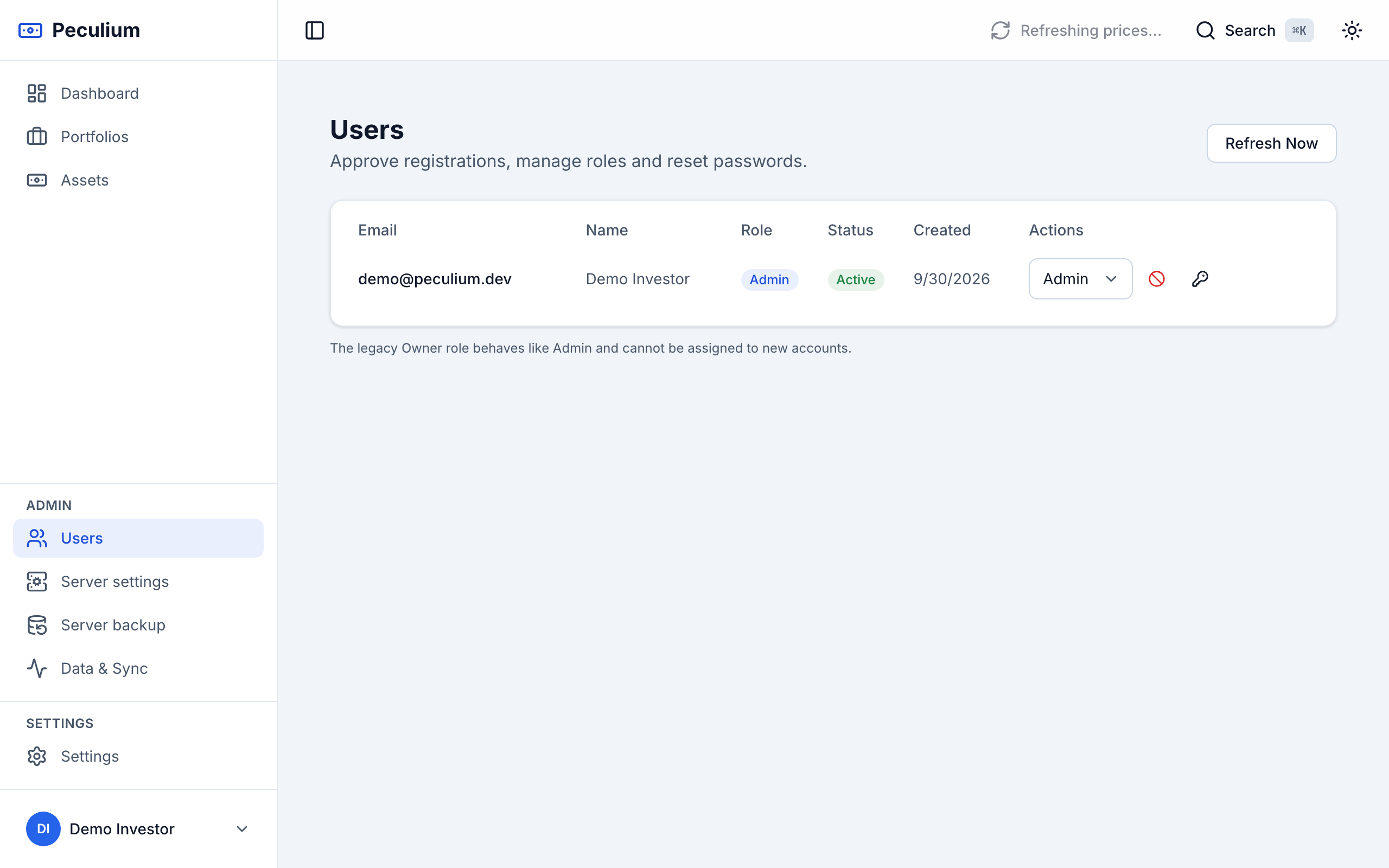
Admin → Users — every account with role and status, and the approve / disable / role / reset actions.
Server settings — Admin → Server settings
Server-wide preferences, applied immediately. Today the decision that matters most is Auto-approve new registrations: when on, new accounts can sign in the moment they register; when off, an administrator must approve them from the Users page first. For a home instance you share with family, you’ll likely want each newcomer approved by hand — leave it off and watch the Pending badge.
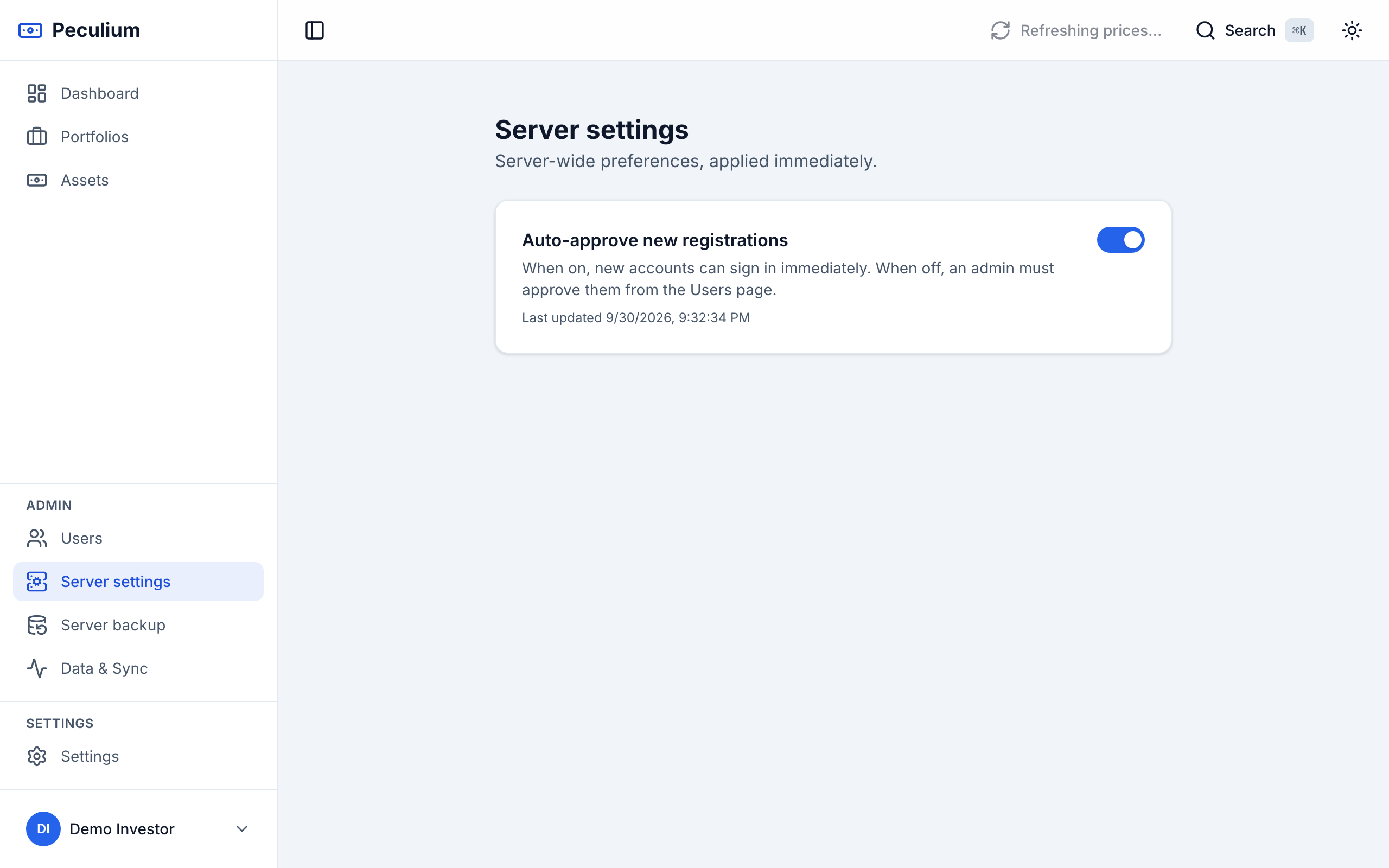
Admin → Server settings — the auto-approve switch for new registrations.
The heavyweight of this area — the database Server backup — is covered in Backup & restore: remember its dump contains all accounts on the instance. Your own account (name, base currency, theme, password) stays on the Settings side.