
Backup & restore
Peculium offers backup at two levels, and it is worth keeping them straight: one protects your workspace, the other protects the entire instance. As a rule of thumb, take a fresh backup before every upgrade of the stack (the install guide covers the upgrade itself).
Your data — Settings → Backup & restore
Anyone can back up what they own. The Download your data card exports every portfolio with its transactions, the referenced assets (metadata, exposure and the manual prices you entered) and the currencies in use as a single JSON file. Provider data — Yahoo prices, FX history — is deliberately left out: it is refetched after a restore, as described in Data & sync.
Restore from a backup takes one of these files and offers two modes:
- Add to current data — non-destructive: the backup’s portfolios are imported as new ones and nothing you already have is touched.
- Replace current data — your existing portfolios and their transactions are deleted first, then the file is imported; you must confirm this in a dialog, and it cannot be undone. Assets are never deleted by either mode: the catalogue is shared, existing entries are reused and only missing ones are recreated (Concepts).
A successful restore reports the counts: portfolios and transactions created, assets created and reused.
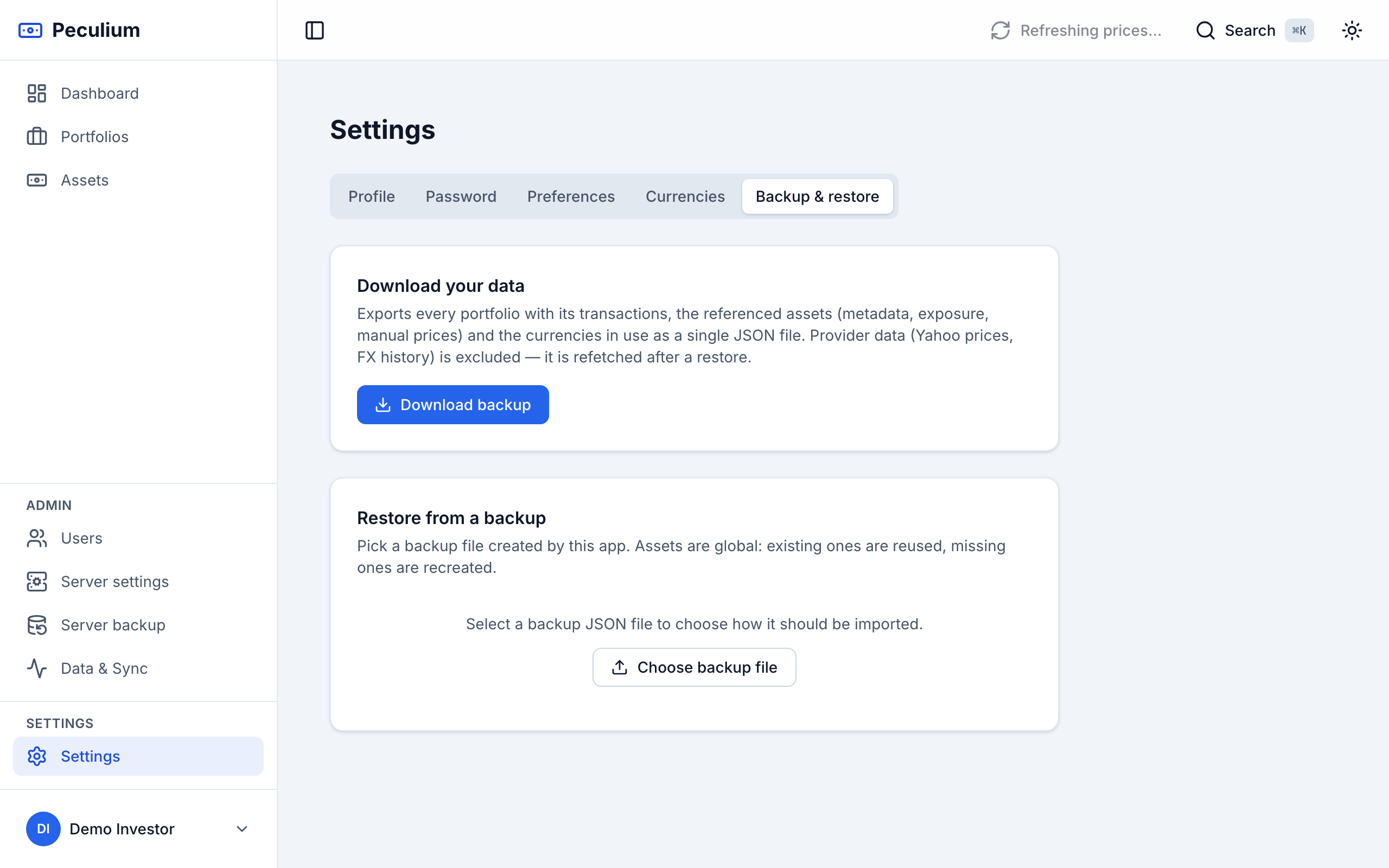
Settings → Backup & restore — one JSON download, restore in Add or Replace mode.
The whole server — Admin → Server backup (admins only)
Administrators have the heavy tool under Admin → Server backup. Download a full dump streams the entire server database — every user, portfolio, asset and setting — as a PostgreSQL custom-format archive. Keep that file safe: unlike your own backup, it contains all accounts on the instance.
Restore from a dump is the mirror image, and it is destructive: it rewrites every table from the archive, users included. There is no “add” mode here — it replaces the whole server-wide database, not just your account, and you have to type the word REPLACE to confirm. Current sessions and tokens may stop working, so expect to log in again afterwards. It is a server-wide operation: large databases take a while — keep the page open until it reports the result.
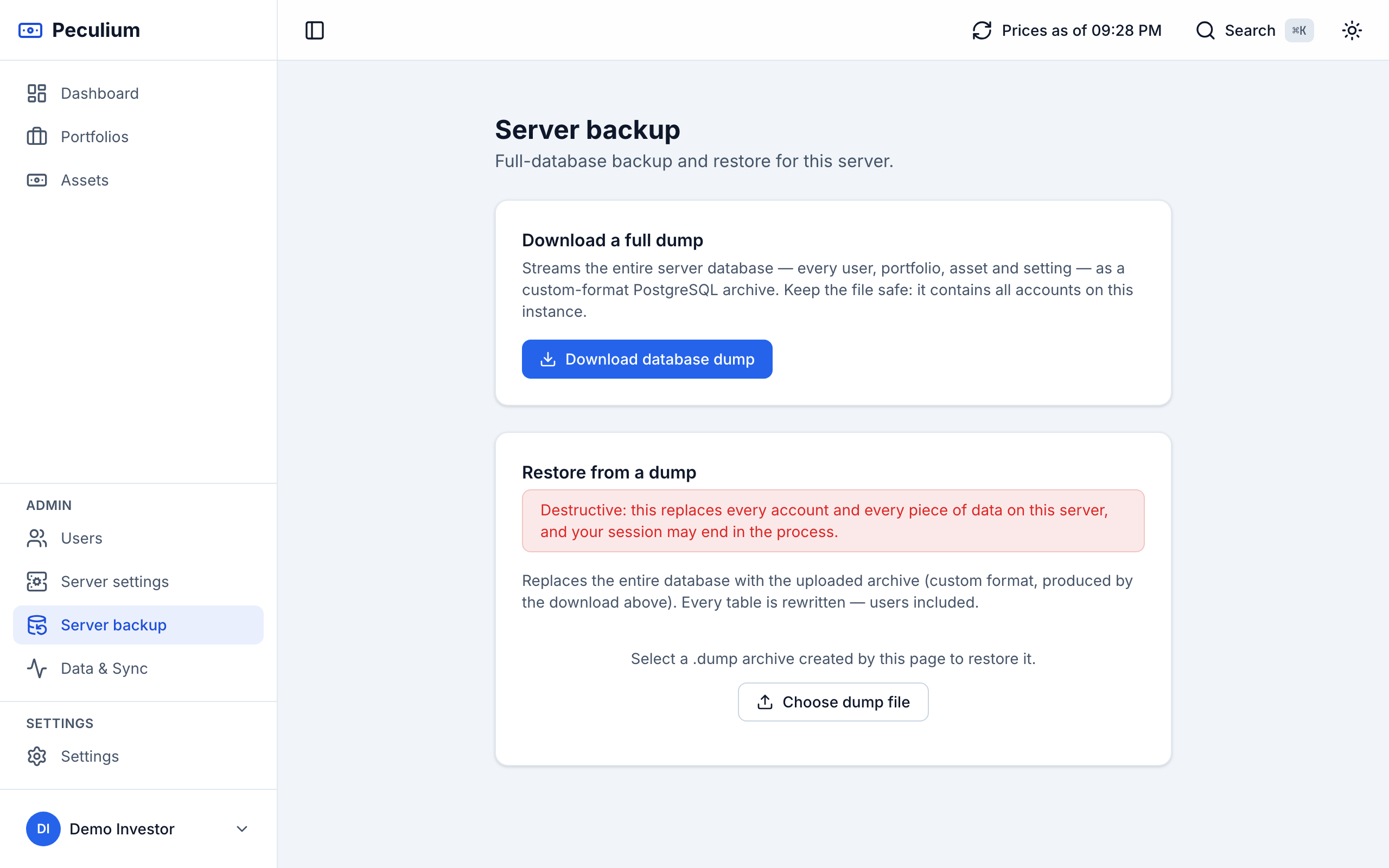
Admin → Server backup — the full database dump, and the destructive restore gated by a typed confirmation.
The user-level cards are part of Settings; the admin area around Server backup — users and server settings — is covered in Administration.