
Quickstart
This chapter takes you from zero to your first result in Peculium. The full setup of the stack lives on the install page — here we assume Peculium is already running.
What you need
Docker and a running Peculium stack from the install guide. Then
just a browser pointed at the web UI (by default http://localhost:3000).
First login
The login screen is also where you create your account: choose Register, enter an email and a password, then sign in. The first account created on a fresh instance becomes the administrator — the user who manages the others.
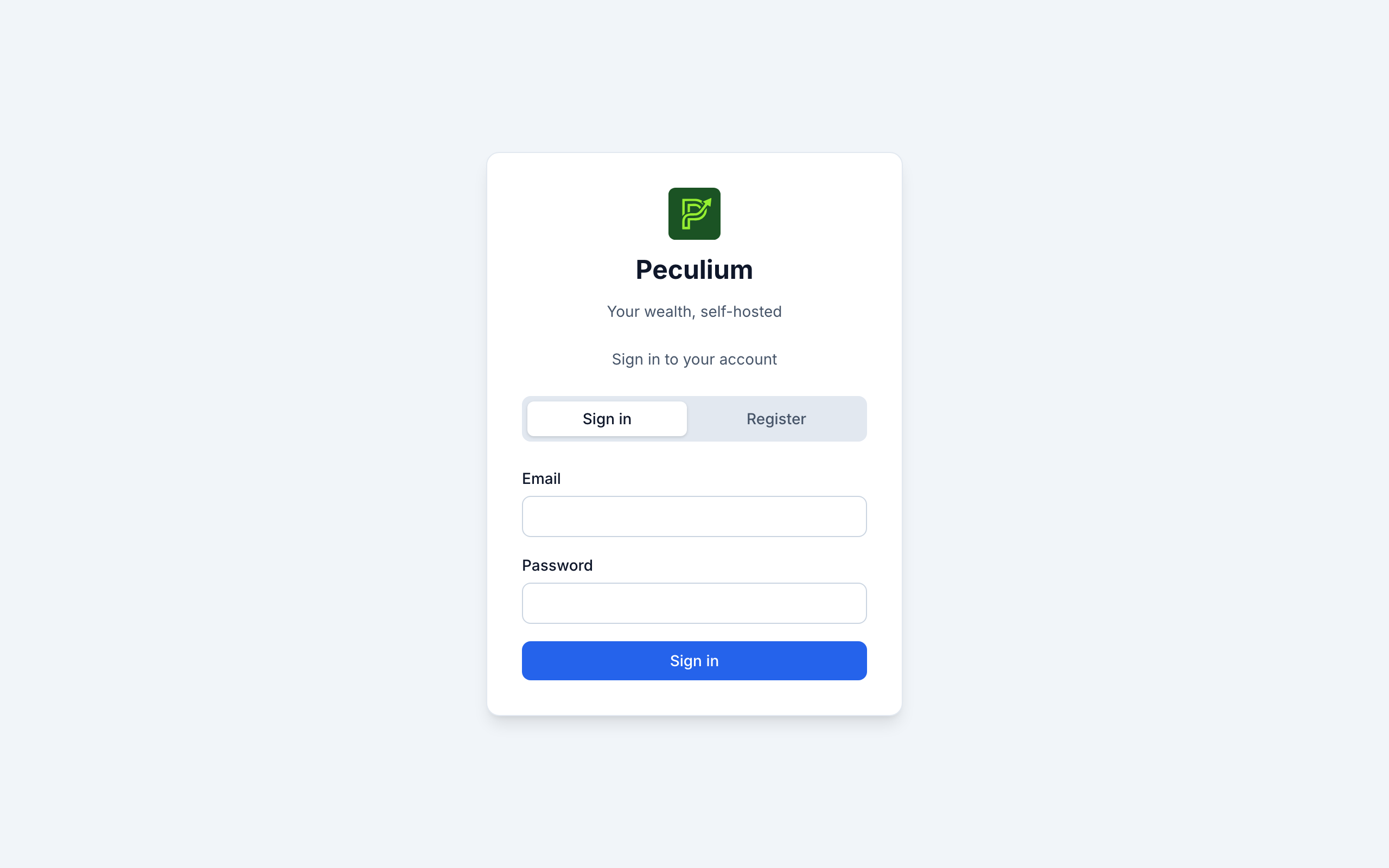
Login and registration share one screen — sign in, or register the first account.
Create your first portfolio
Go to Portfolios and open Create Portfolio. A name is enough; the description is optional, and the currency (USD by default) is the currency the portfolio reports its totals in. A portfolio is the container you record transactions into — for example one per broker or per strategy.
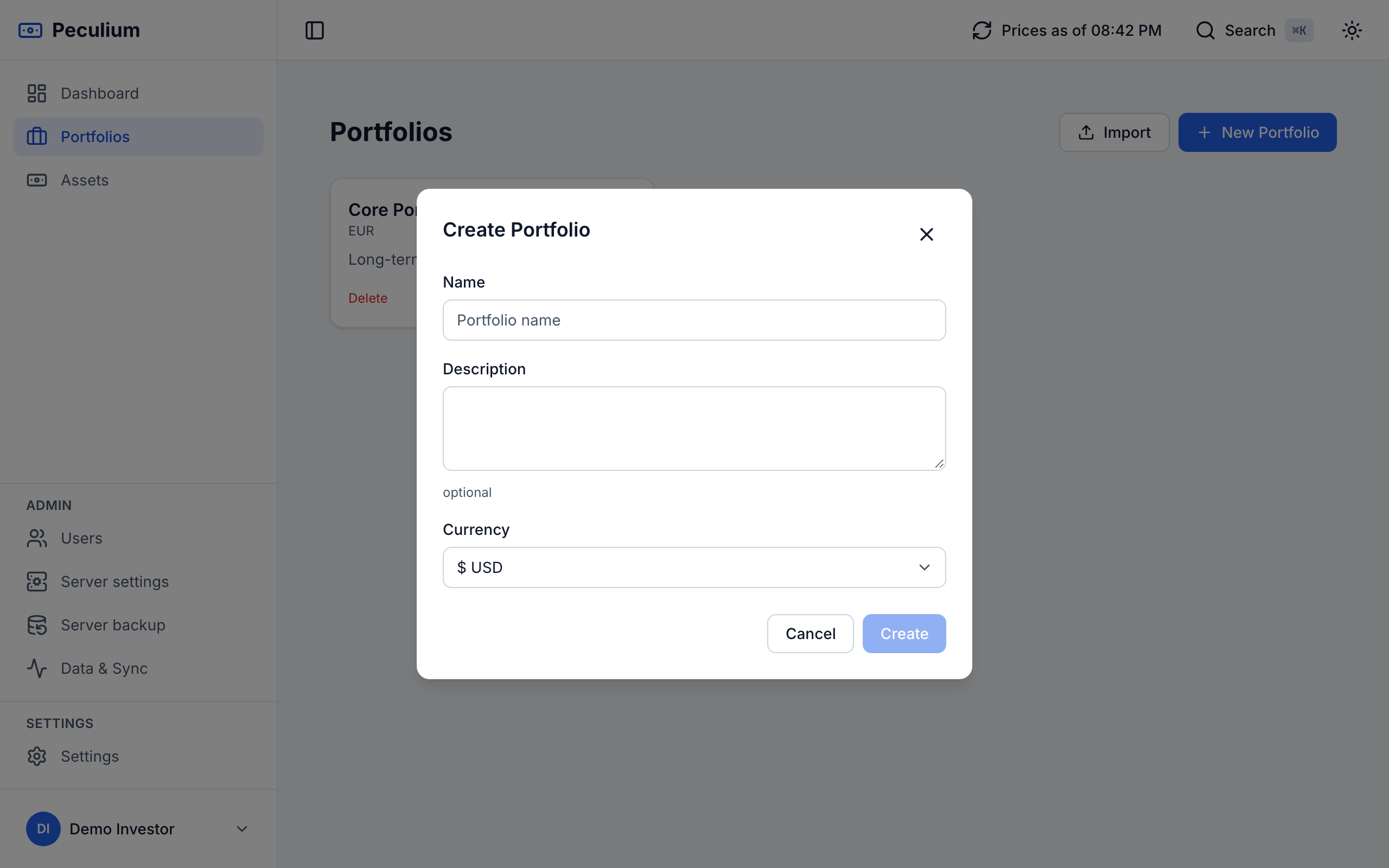
One empty portfolio, ready to be filled.
Add an asset
Assets are the instruments you hold, identified by their Yahoo Finance
ticker. Go to Assets, click Add, type a ticker such as AAPL and pick
it from the lookup: Peculium registers it with its details. Exchange, ISIN and
the other metadata stay editable later on the asset page.
Record your first transaction
Open your portfolio, click Add transaction and pick the asset you just registered. Choose the type — buy, sell or dividend — then enter quantity, price and date and save. Fees and notes are optional.
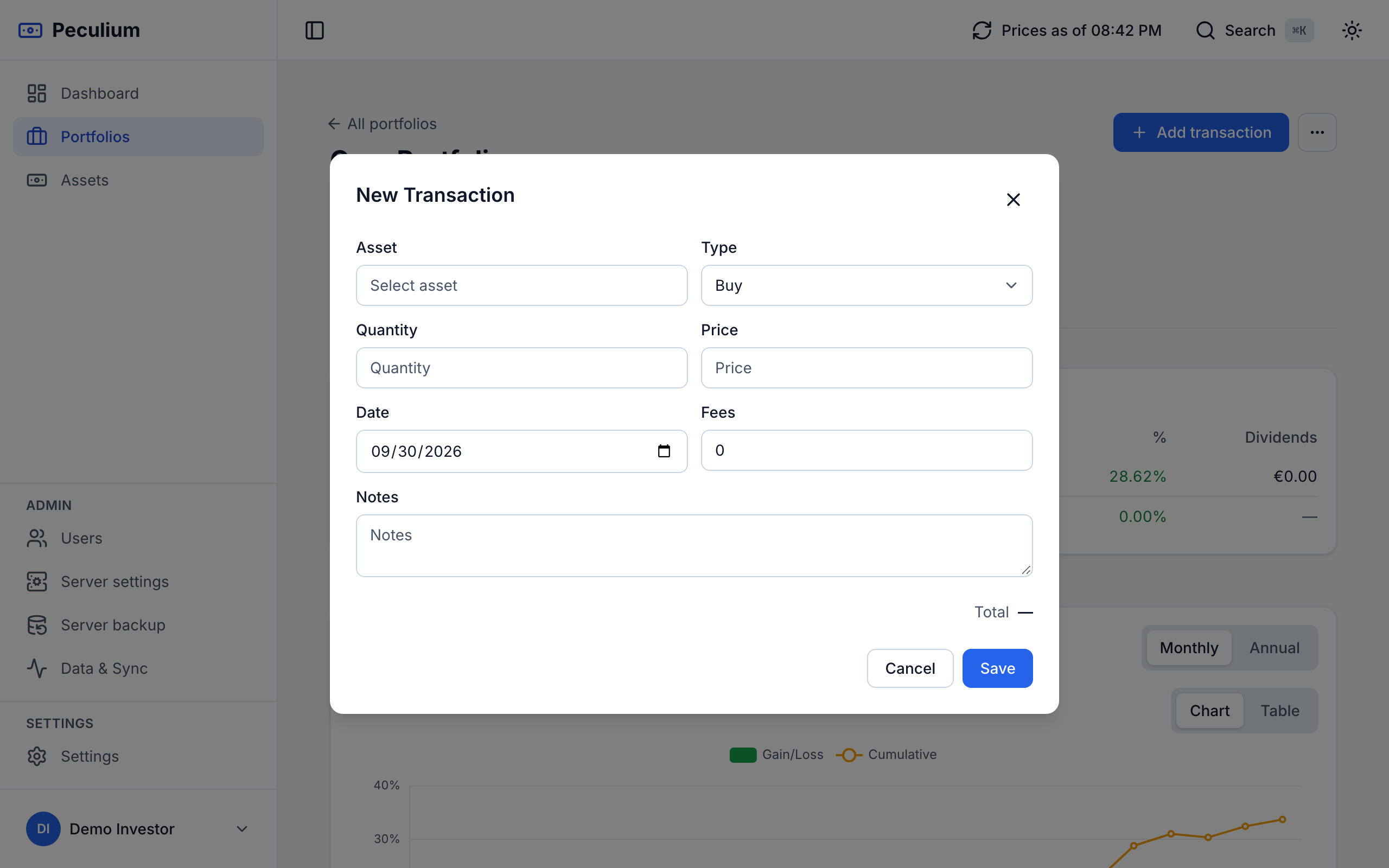
A first buy — asset, type, quantity and price are enough to get real numbers.
See your dashboard
Open the Dashboard: the total value of your holdings, the gain/loss, the allocation donuts and the performance chart are calculated from the prices Peculium keeps up to date for you, aggregated across your portfolios.
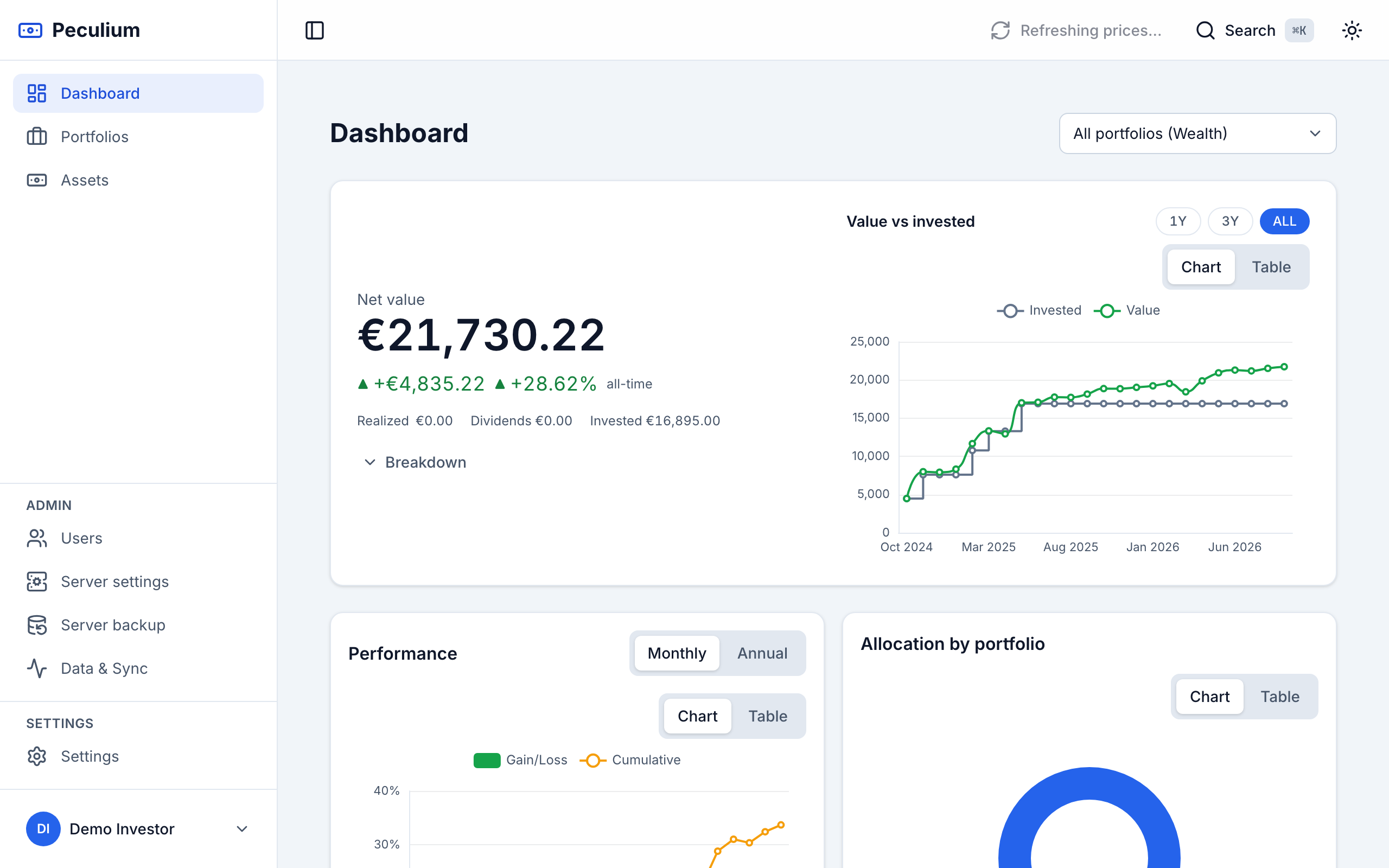
The dashboard is the first thing you see after login — one transaction already makes it real.
Where to go next
- The features page tours what else the app can do — allocations, ETF exposure, multi-currency views.
- The install guide covers running and updating the stack.
- The other chapters of this manual appear in the sidebar and on the manual home.